
Voyager
The ZSA voyager is a $365 ultra premium split keyboard. If you like low-profile keyboards, this is the grail keyboard. It has excellent software, it feels solid, it has excellent add-ons, and it makes pretty lights.
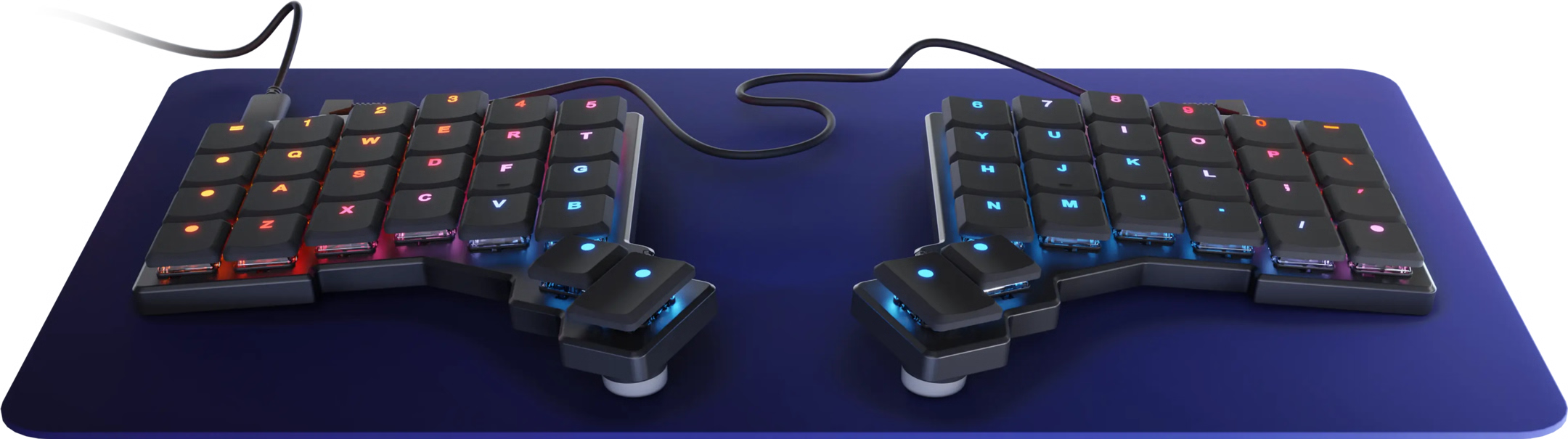
This was the first Keyboard that made me take a major look at alternative
layouts and different typing styles.
Why? You may ask. Well, count the keys. There physically aren’t enough keys to support
all the functions on a normal keyboard. IE, if you include all standard keys like
the number row, standard querty letters, and symbols, then you have roughly 7 keys
for modifiers and special keys.
Here are the special keys a normal keyboard has:
- Tab
- Escape
- Enter
- Space
- Super / Meta / Windows Key
- Alt
- Fn key
- Ctrl
- Shift
- Arrow Keys
- Backspace
There simply aren’t enough keys.
This layout requires a little engineering. In my case the inclusion of Layers and Home Row Mods.
Layers
Layers are the simpler of the two features. The work like this: you activate a
layer, and the actions of the keys are all mapped to another action. This is
similar to when you press shift or fn, and it uppercases the letter or runs
the function key.
Most people will likely have a 3 or 4 layers on a generalized setup. Some many more.
I prefer to keep my layers simple, transparent, and to not put anything on the layer
that I’m not going to use on an hourly basis.
Home Row Mods
I’ve got another post on these, but TLDR is this: Home Row
Mods use an action called Tap Hold which allows you to change the behavior of
a key based on how you use it. For example, if you were to tap a key, you might
get a J, however, if you were to hold it down, you would get a CTRL key.
This eliminates the need for the bottom row of modifier keys (Super, Alt,
Shift, Ctrl), frees up some keyboard space, and gives you easier access to
those modifiers without moving your hands to a different row.
My Layout
The Navigator
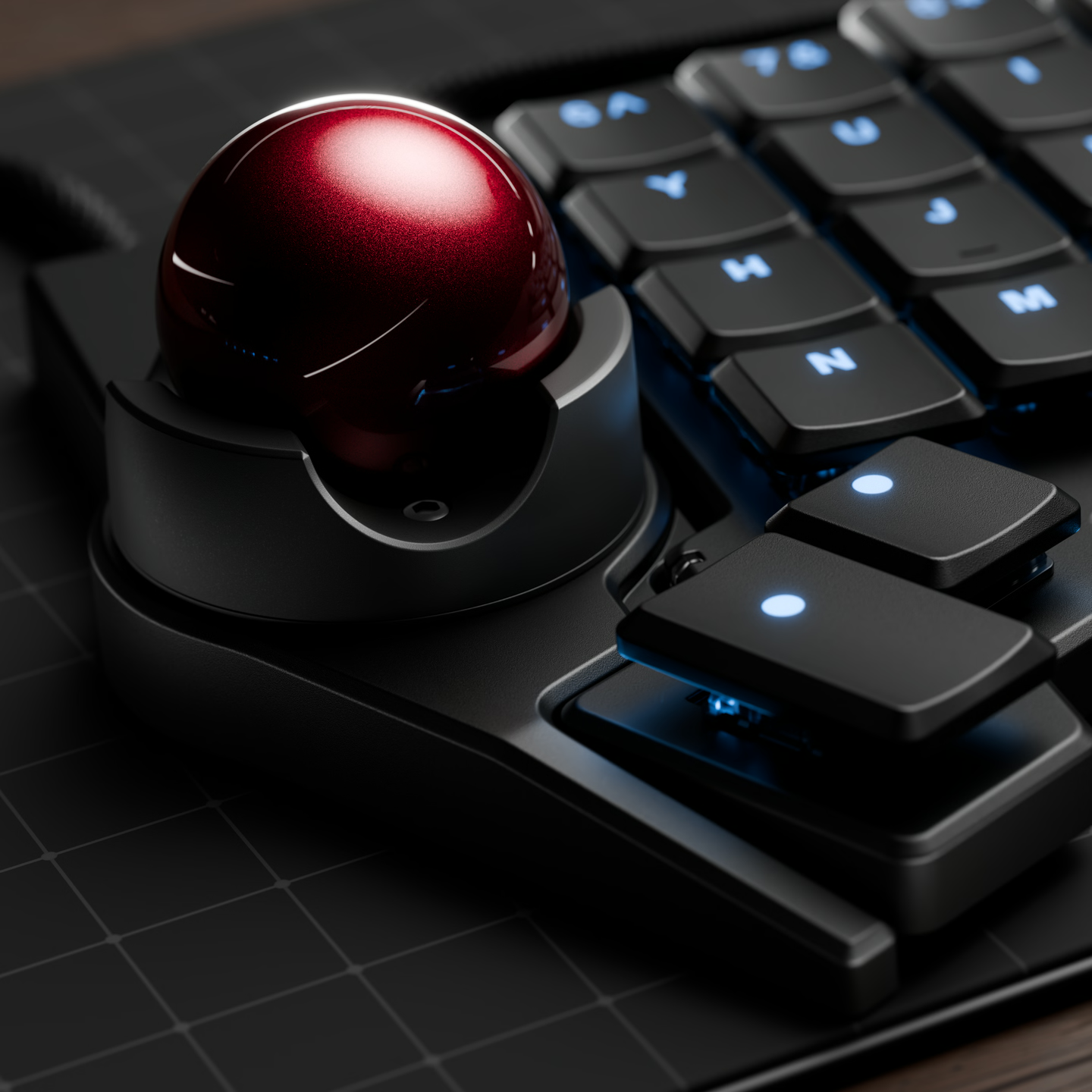
The Navigator is a trackball module made bespoke for the Voyager (but compatible with the other ZSA keyboards). It magnetically connects to the side of the voyager on the left or right (depending on how you order it), but is designed in such a way that you can easily make your own special mounts for it.
This again, was something that radically changed how I look at input devices.
I had always thought that trackballs seemed like weird, obscure devices whose use
of them is purely predicated on the unusualness of the device, that they were curiosities
rather than functional improvements to the mouse.
I’ve come to believe that I was wrong about that.
Here’s my reasoning: most of the movements you need to do with a mouse are relatively
simple, precise movements. In order to use a normal mouse, you need to move your
hand from the keyboard, home onto the mouse, then move the mouse to click the thing
you intended to click, then re-home onto the keyboard, and get back to keyboarding.